
The AI Content Creation Plan
Before we jump into the tools, let’s look at the basic steps for creating a social media video. You can think of it like building a house; you need a good plan.- Idea and Script: Start with a concept. What is your video about? Write down a simple script.
- Make the Visuals: This is where you create all the images and video clips that will be in your video.
- Improve and Edit: Polish the visuals. Make them brighter, sharper, or add cool effects.
- Add Sound: Put in a voiceover, music, or sound effects.
- Finish the Video: Put all the pieces together in the right order and get it ready to post.
Step-by-Step AI Tool Application with MagicShot.ai
Let’s get into the details of how to use these amazing tools.Step 1: Start with Your Idea and a Script
The first step is always the most important. You have to have a plan. MagicShot.ai can help turn that plan into the first bits of your video.- Text to Video: Imagine you have a script that says, "A beautiful, calm sunset over a futuristic city." You don’t need to film this yourself. Just type that sentence into MagicShot.ai’s Text to Video tool. The AI will create a short video clip of exactly that. This is perfect for background footage or to set a scene for your video. It’s a huge time-saver.
- Text to Speech: You can also use AI for your voiceover. If you have a script for a tutorial or a story, you can use the Text to Speech tool inside MagicShot.ai. You simply type your words, and the AI will read them out in a clear, human-like voice. This is a great way to add a professional voiceover to your content without needing to record it yourself.
Step 2: Create the Main Visuals
Now that you have your basic plan and some background video, it’s time to create the main parts of your video. This is where the AI Image Tools in MagicShot.ai really shine.- Avatar Generator / Age Journey: Want to create a character for a story or a brand mascot? An Avatar Generator can do it. You can even use Age Journey to show what a character might look like at different ages. This is perfect for a storytelling video or a funny skit.
- AI Model Shoot / Product Photography: If you sell products, this tool is a game-changer. You can upload a photo of your product, and the AI will place it on a professional background. You can choose a setting like "on a marble counter with soft light" or "on a wooden table outside." This lets you create high-quality product photos without a fancy studio or models.
- Re-Imagine / Image to AI Image: These tools are for your creative ideas. You can upload an existing photo and tell the AI to turn it into a cartoon or a painting. Or you can use Re-Imagine to give a photo a whole new style. This is great for making your content stand out and look artistic.
- Face Swap / Face to Sticker: These are some of the most popular tools for social media. You can use Face Swap to put a friend’s face onto a famous movie character. Or you can turn a face into a fun sticker for a video. This is a simple way to create funny and shareable content that people will love.
Step 3: Make Your Content Look Better
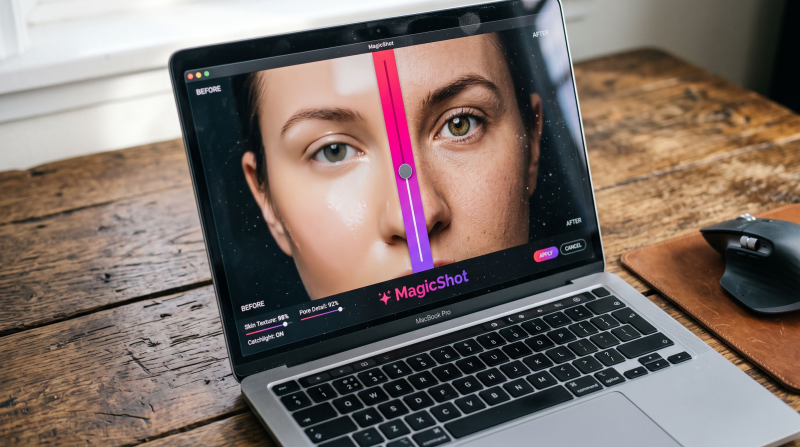
After you have your basic visuals from MagicShot.ai, it’s time to polish them up. This step makes your content look more professional and complete.- Image Upscale / Face Enhancer: Sometimes, the images you start with might not be very clear. The Image Upscale tool can make a small, low-quality image much bigger and sharper without it getting blurry. The Face Enhancer tool can improve faces in photos, making them look more detailed and professional. These tools are key to making sure your final video is high quality.
- Background Remover: This is a very useful tool in MagicShot.ai. You can use it to get rid of the background from any photo. This is perfect for creating a clean product shot or for layering a person onto a different background in a video.
Step 4: The Finishing Touches and Final Edit
You have your video clips, images, and voiceover. Now, it’s time to put it all together.- Video Sound Generator: The right sounds can make a huge difference. MagicShot.ai’s Video Sound Generator can create a sound effect or a background sound that matches your video. For that "futuristic city" clip we made, you could generate a "futuristic city soundscape." This adds another layer of quality to your content.
- Final Assembly: Now you just need to use a simple video editor. You can use free apps like CapCut or the editor built into TikTok or Instagram. You put all your AI-created pieces together, add your music, and maybe some text. Once it’s all together, you can save and upload your finished video.